01 / SCOPE & PURPOSE
Split by size or by category
Working with a batch-size limit or distributing records by region? Split by row count or group the output by a selected column value.

Turn one large table into manageable files. Split by record count or column value, with headers in every file.
Import data, confirm the rules, review the result, and export a new copy.
Drag and drop a CSV, TSV, or delimited text file
UTF-8 · Up to 10 MB per fileExplore the scope, review process, and results in three practical scenes.
Working with a batch-size limit or distributing records by region? Split by row count or group the output by a selected column value.
Quoted commas and embedded line breaks are not treated as extra records. Split parsed records as whole units and include headers in each part.
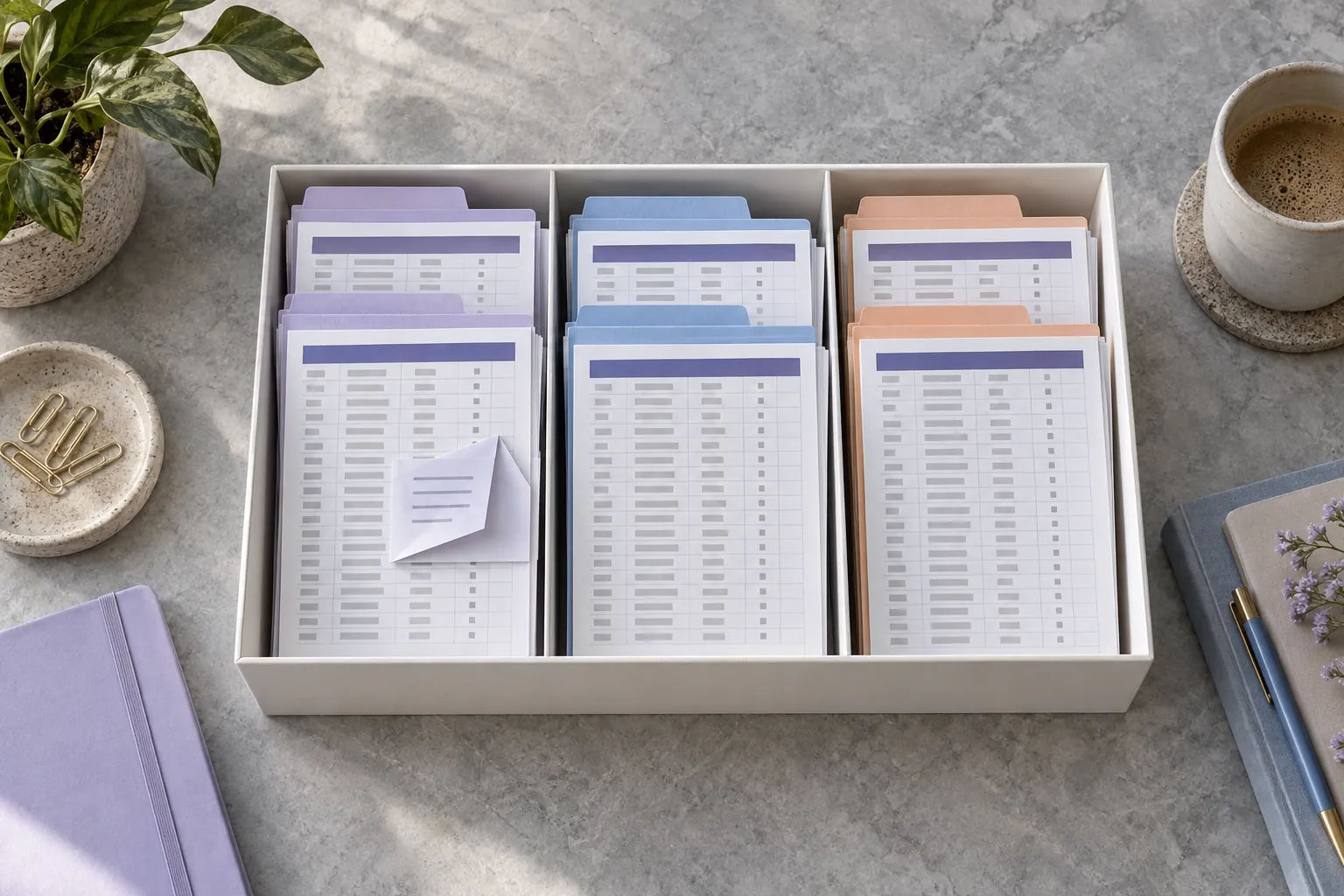
Review the filename and row count for every part. The ZIP includes a manifest and undergoes read-back verification so the exported set is easier to check.

Explore the available features and choose what your table needs next.
Set the number of data records per part, excluding its header.
Use in the toolCreate parts for values such as regions or categories.
Use in the toolInclude headers so each part can be understood independently.
Use in the toolSplit logical records while preserving quoted multiline cell content.
Use in the toolReview names, row counts, and grouping information for each part.
Use in the toolDownload the parts and manifest together with safe, unique filenames.
Use in the toolConfirm the input, inspect changes, and save the output you need.
Choose a CSV or TSV file, or paste a table. Check the delimiter, headers, and preview before confirming the full import.
Choose a row-count split or grouping by a column value. Inspect the parts and manifest, then generate the ZIP containing files and the manifest.
Confirm the parts and manifest, review export settings, and run verification before downloading the ZIP.
A CSV splitter divides one parsed table into manageable outputs. TableWorkbench supports a fixed number of data records per part or grouping by a selected field value. Each output normally includes a header, while the header is excluded from the record count. This is useful for preparing batches for a destination that limits records, or separating a catalog by a region or category. It does not promise an exact byte size such as precisely five megabytes per file.
Import the file and confirm its delimiter, quote character, and header first. A product description containing an embedded newline occupies several physical text lines but remains one logical record. Splitting raw text at every newline would break such a description and change the meaning of later records. The workbench operates on the parsed records and uses a CSV serializer when producing each part, preserving quoting around delimiters, quotes, and multiline content.
Select Records per file and enter a positive whole number. A table with seven data records and a limit of three yields three parts containing three, three, and one record. Including the header does not reduce the number of data records in a part. The last part can be shorter because it contains the remainder. Empty records that were accepted during import are still records unless a separate cleaning or filtering step removed them before splitting.
The order of records is preserved within parts, and parts follow the input sequence. If you later append those parts in numbered order, with their headers correctly identified, you can recover the same sequence of data values. This is a useful acceptance check before submitting batches to a destination system. Do not rely on a file browser's arbitrary sorting of names; use the continuous numbering and the manifest's part order to identify the intended sequence.
Select Values in a column when every record for the same category should go together. Choose the grouping field explicitly. The current version groups by the original field value without automatically changing case, trimming whitespace, or interpreting numbers. North and north are distinct groups, and a trailing space can create another group. If those differences are not meaningful, clean that field first as a separate visible step and review the changes.
Empty values have an explicit group, and missing cells are represented separately inside the data model. Each record enters exactly one group. Group order follows the first appearance of each value, while records within a group retain their input order. Reappending grouped files restores the set of records but generally does not restore the original interleaving between groups. Use record-count splitting when restoring the precise source sequence by simple concatenation is a requirement.
Set a short filename prefix that describes the output task. The workbench adds a continuous part number and, in grouping mode, a sanitized form of the group value. Path separators, control characters, and unsafe filename characters are replaced. Reserved device names are disambiguated, and part numbering avoids collisions when distinct group values sanitize to the same text. A value like a/b cannot create an unexpected folder path inside the archive.
The manifest preserves the mapping between the original grouping value and the resulting part name, together with each part's record count. This is more reliable than trying to infer the original value from the sanitized filename. The ZIP export also includes a file list identifying every generated table, record count, column count, and formula-protection count. Review both the data parts and the manifest when a destination expects a strict import package.
Consider four products with codes 001 through 004. Two belong to North, one belongs to South, and the last has an empty region. First clean the description column, then use the mapper to arrange SKU, Name, and Region in the required order. Apply those results to the workflow and open the splitter. Choose grouping by Region and a prefix such as import. The output contains three data parts: North with two records, South with one, and the empty-region group with one.
No product should disappear or occur in two parts. Check that the sum of part counts is four and inspect the empty-region part rather than treating it as an error that can be dropped. If the receiving system cannot accept an empty region, resolve that value before creating the final package. The splitter itself does not fill missing values or assert that the destination will accept the records. Its responsibility is to partition the chosen table according to your visible rule.
Run and review produces the part tables and manifest before downloading. Use the result selector to inspect individual parts, including the first and last record at boundaries. The maximum is one hundred parts. If a grouping field contains too many distinct values or a record limit would generate too many files, the task stops and asks you to change the settings. This prevents an unexpectedly large archive and keeps output scale separate from input-file scale.
Export defaults to the ZIP method for splitting. Confirm CSV or TSV, headers, UTF-8 BOM, and spreadsheet protection. Every generated table is serialized and read back for a cell-level consistency check before packaging. The protection policy may change values that begin like spreadsheet formulas, including legitimate negative quantities or plus-prefixed text. Review the affected count and choose raw text only when you understand the receiving application's behavior. The original file is never replaced.
Choose a maximum number of data records per part and enable headers for the output. The header is separate from the requested data count. Quoted multiline fields stay within their records. Check the manifest and the final smaller part before using the archive in a destination with its own file-size limits.
No. The size describes data records. With a limit of one thousand and headers enabled, a full part contains one thousand data records plus one header record. If the destination describes a limit that includes the header, adjust your requested data size accordingly. Check its documentation rather than assuming all importers define a row limit the same way.
No. This version divides by record count or field value. Different records can contain very different amounts of text, and quoting or a UTF-8 character can affect encoded size. Splitting by a particular byte target would require separate semantics for records that exceed that target by themselves. The current page does not advertise that capability.
It stays in the same parsed record. The serializer quotes it when necessary, so the resulting CSV remains readable as a table. A plain text editor may show more physical lines than the manifest's record count. That difference is expected. Use a CSV parser, rather than counting newline characters, when checking the exported number of records.
Grouping uses stored text exactly. Case, trailing spaces, and distinct Unicode representations can be meaningful, so they are not normalized automatically. Inspect the original values and decide whether a cleaner step is appropriate. Keeping cleanup separate makes it possible to explain both the value changes and the later grouping decision.
Yes. Processing runs in a browser worker and the task can be cancelled. Cancellation stops that worker and leaves the source data and applied workflow steps available. No partial archive is offered as a completed export. If a task repeatedly reaches the timeout or scale limit, reduce the batch or choose a less fragmented grouping before retrying.
Start with a sample to learn the workflow, then process your own files.