01 / SCOPE & PURPOSE
Clean the fields you choose
Extra spaces in product names or inconsistent category casing? Choose a narrow scope and an ordered set of rules. Leave identifiers, dates, and notes as they are.
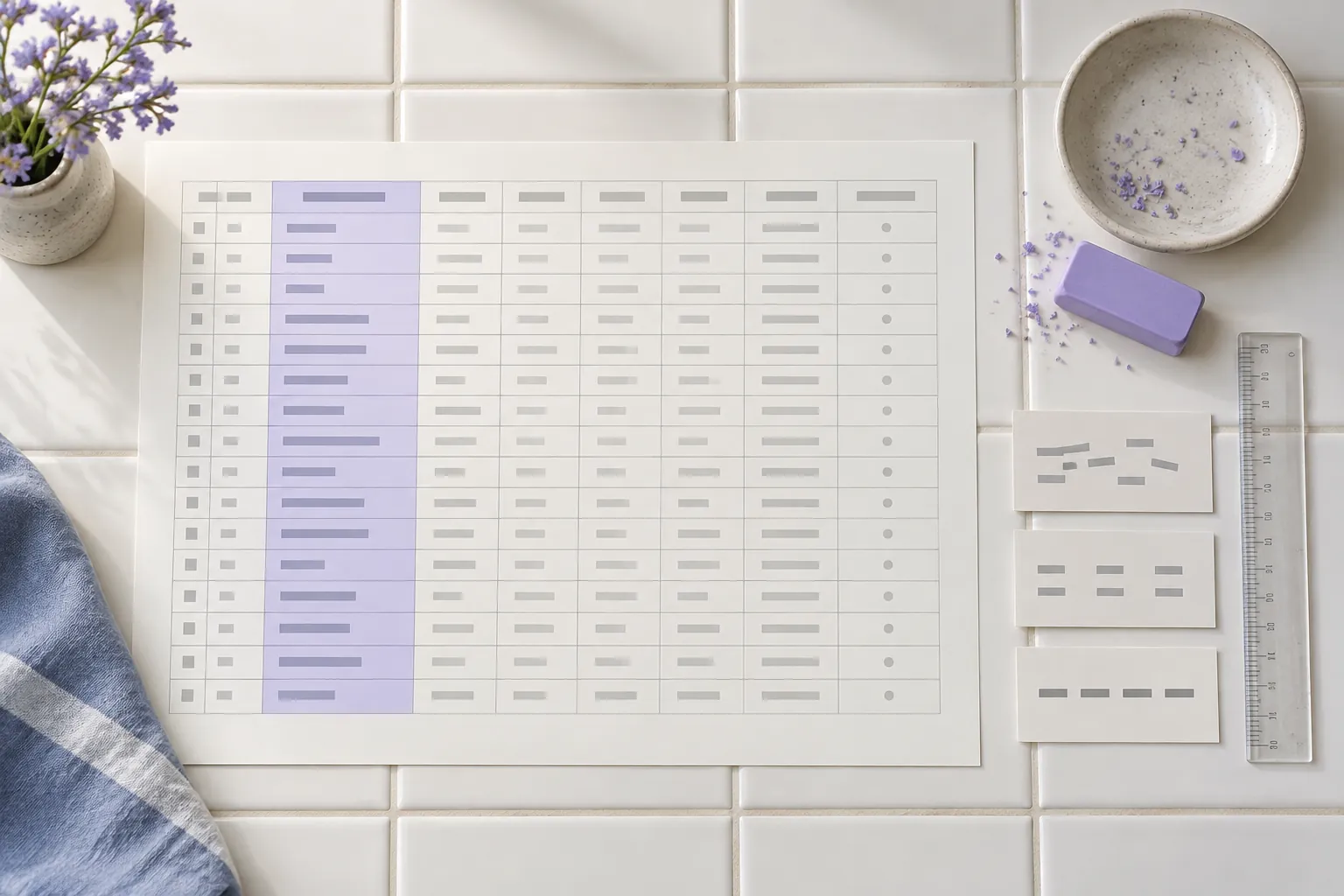
Give inconsistent cells a consistent form. Clean whitespace, letter case, and explicit missing markers.
Import data, confirm the rules, review the result, and export a new copy.
Drag and drop a CSV, TSV, or delimited text file
UTF-8 · Up to 10 MB per fileExplore the scope, review process, and results in three practical scenes.
Extra spaces in product names or inconsistent category casing? Choose a narrow scope and an ordered set of rules. Leave identifiers, dates, and notes as they are.
Trimming before replacing a missing marker can produce a different result from doing it afterward. Reorder or disable steps and keep the complete sequence visible.

Inspect cell changes, removed records, and source locations. Apply or export only after reviewing the result, keeping the source file intact.

Explore the available features and choose what your table needs next.
Run cleanup only in selected columns, leaving unrelated fields untouched.
Use in the toolChoose separate rules for edge whitespace, repeated ASCII spaces, and U+200B.
Use in the toolConvert chosen fields to uppercase or lowercase while retaining the source for comparison.
Use in the toolDefine markers such as N/A yourself. Zero, false, and NULL are not automatically treated as empty.
Use in the toolReorder, disable, and rerun rules. Undo and redo applied workflow steps.
Use in the toolReview before-and-after values, source positions, and removed rows before choosing an export scope.
Use in the toolConfirm the input, inspect changes, and save the output you need.
Choose a CSV or TSV file, or paste a table. Check the delimiter, headers, and preview before confirming the full import.
Select the columns to clean, then add trimming, casing, or explicit missing-marker rules in order. Run and review before applying the result.
Choose the result or report and CSV or TSV format. Review the export summary and protection count, then confirm download or copy.
A CSV cleaner is useful when the structure of a table is sound but selected values need consistent treatment. A product name might have spaces at both ends, a category might alternate between upper and lower case, or a source system might write N/A to indicate a missing description. These are different decisions. TableWorkbench lets you choose the affected columns and put explicit cleaning rules in an ordered sequence. Importing a file alone does not make any of those decisions for you.
Start by choosing a CSV, TSV, or delimited text file. You can also paste cells copied from a spreadsheet. In the parsing dialog, check the delimiter, quote character, header setting, and any initial records you need to skip. Parse and preview the complete input, then inspect both the column names and representative values before confirming import. If a quoted field is malformed or a record has extra fields, the import stops instead of silently discarding data. Short records can be padded only through the visible confirmation option.
The column checkboxes define the scope for your cleaning sequence. Begin with a small set of fields whose meaning you understand. An identifier column should usually stay outside a rule intended for descriptions. Add a cleaning step, choose its action, and repeat when more than one action is needed. The up and down controls change order; disabling a step leaves its settings available without running it. Run and review performs the selected sequence over all records, while the grid presents manageable pages of the result.
Order matters. If an exact missing marker is written as a space, N/A, and another space, replacing N/A before trimming will not match it. Trimming first can expose the marker for a later exact replacement. Conversely, uppercasing before a case-sensitive literal replacement can change whether a word matches. Review the sequence as a short set of instructions rather than treating all options as interchangeable cleanup switches. The changes report lists the affected column, previous value, resulting value, and original record location.
Trim edges removes surrounding ordinary spaces, tabs, carriage returns, line feeds, nonbreaking spaces, and full-width spaces. It does not remove every invisible Unicode character. Collapse consecutive ASCII spaces reduces runs of the ordinary space character inside a cell; it does not collapse every kind of Unicode spacing or every line break. Remove U+200B addresses that specific zero-width space. It does not promise to remove joiners, directional controls, or other invisible characters that may be meaningful in written language.
Lowercase and uppercase use the browser's Unicode casing behavior and change the stored text in selected cells. Literal replacement looks for exactly the text you supply. Missing-marker replacement is an exact cell-value rule, so an empty string, the word NULL, the word false, and the character zero remain distinct until you explicitly choose otherwise. Missing cells created by confirmed padding are represented separately inside the workbench, although ordinary CSV output cannot preserve every internal distinction between a missing cell and an empty field.
Imagine a file with SKU, Product, and Note columns. SKU 001 has the product text “ BLUE PEN ” and the note “ keep this spacing ”. Select Product only, then add Trim edges, Collapse consecutive ASCII spaces, and Lowercase in that order. The product becomes “blue pen”. SKU stays 001 and the Note column retains its original spacing. This narrow scope is useful when descriptions need consistency but notes are evidence that should not be rewritten.
Add another record whose product is N/A. That text does not disappear merely because it resembles a missing-value marker. To clear it, add an explicit missing-marker step and leave the replacement empty. If you also select Remove entirely empty records, the tool checks the whole record: an empty product does not make a row with a populated SKU empty. Removed records remain available as a separate report. Empty-column removal considers only selected columns and reports how many were dropped from the result.
The original view provides the input used for this run. The result view shows the transformed table, and the cell-change report explains modifications. A grid search helps locate examples but does not define what gets exported. After checking the complete counts and enough representative changes, apply the result to the workflow. Subsequent tools receive that applied table without requiring a download and re-import. Undo recomputes the prior workflow state; redo restores an undone step when it remains available.
Changing a rule or input marks an existing result stale. A stale result cannot be downloaded as though it reflected the new settings. Run again, inspect the result, and then open export. Choose the report or result explicitly, set CSV or TSV, decide whether to include headers and a UTF-8 BOM, and review spreadsheet protection. The export verification step rereads the generated text and compares it with the intended output. Download creates a new copy; it never opens or overwrites your source file.
This tool handles text data, not an Excel workbook with formulas, styles, charts, or macros. Export a relevant sheet to UTF-8 CSV first when your source is a workbook. The workbench does not infer dates, calculate formulas, repair a corrupted encoding by guessing, or reconstruct leading zeros that were already lost elsewhere. Its per-file, record, column, cell, field-length, and task-time limits are visible safeguards. A phone may need much smaller data than a desktop even below those limits.
If the preview shows one giant column, check the delimiter. If the first product appears as a column name, revisit the header setting. If a cleaning step reports no changes, inspect the actual cell text, the selected columns, and the order of rules. A character that looks like a space may not be covered by the chosen action. The cell-detail view helps inspect long values without widening the entire page. Do not keep broadening the cleanup scope merely to make the modification count increase.
Select only the columns that need trimming and preview the changes. Leave identifier columns out of the rule if their spaces are meaningful. Text such as 00123 stays text in this tool, but a spreadsheet may interpret it differently when opening your export. Keep the original and review changed cells before applying the result.
No numeric conversion occurs during parsing or these cleaning steps. The text 001 remains 001 unless you explicitly apply a text-changing rule that affects it. Another application can still interpret the downloaded CSV as numbers when opening it. Use that application's text-import settings for identifier columns. The workbench preserves the characters in the file; it cannot control how every receiving program displays them.
Yes. Entirely empty rows are evaluated separately from text values such as 0, false, NULL, or N/A. A row containing one of those strings is not entirely empty. Whitespace-only values also remain content until an earlier selected rule removes their whitespace. Check the removed-record report to see exactly which rows qualified after your sequence ran.
A sequence can change one cell at several stages. For example, trimming and then lowercasing produce two change events. The current implementation labels this count as cell change events rather than claiming each event is a different cell. Read the sequence and final result together. This distinction is especially useful when one rule partially reverses an earlier rule.
No. The session lives in page memory. Moving between this site's tools and languages preserves it, but reloading or closing the page clears that memory. Export a result you need to keep. A saved rule file captures configuration, not the table records, and may itself contain sensitive field names or replacement text.
Start with a sample to learn the workflow, then process your own files.