FREE ONLINE TABLE TOOLS

Clean up your tables.Make every change clear.

Clean, deduplicate, merge, and compare with 46 practical tools in one place. Choose a file, set your rules, review the result, and export a fresh copy.

No account neededFiles stay on your deviceOriginals preserved
A CLEARER WAY TO WORK

Simpler tools. Clearer data.

From your first file to your final result, keep every step clear and organized.

01 / CLEAN & ORGANIZE

Import, set your rules, and see a clearer table.

Work through extra spaces, duplicate records, and scattered files one step at a time. Confirm how your table is read, choose the fields to process, and keep every change understandable.

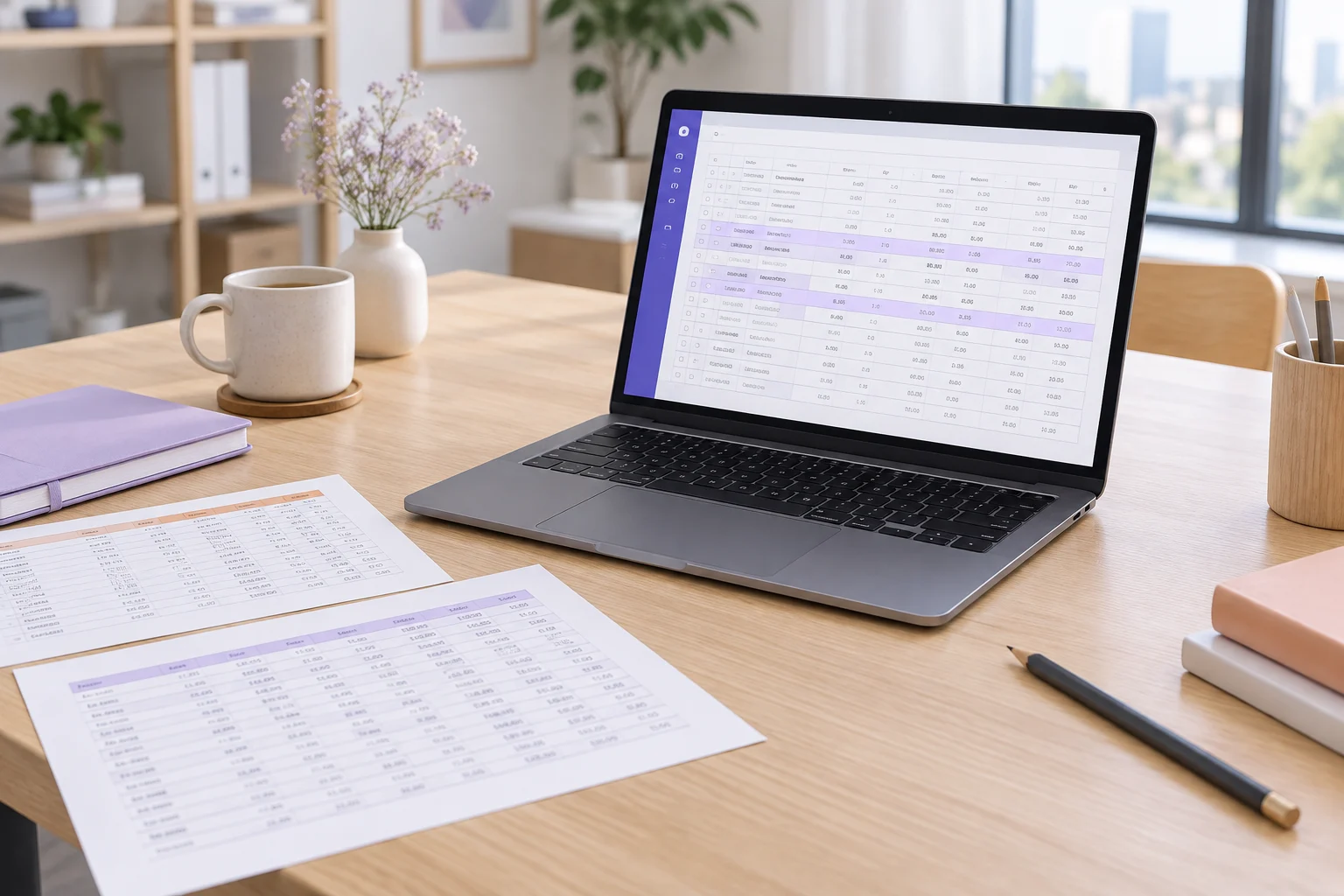
Illustration: a laptop with a table, printed data sheets, and a lavender notebook on an organized desk
Illustrative scene
02 / REVIEW & EXPORT

Review every change. Keep every original.

Inspect additions, removals, and edits separately, using matching rules you choose. Check the scope and row counts before exporting a new CSV or TSV file. Your source files stay intact.

Illustration: neatly arranged table printouts, a lavender folder, and a pen for reviewing data
Illustrative scene
03 / TWO LANGUAGES, ONE WORKFLOW

Switch languages. Keep your work going.

Use the same tools and rules in Simplified Chinese or English. Switching languages within the site keeps your tables and applied steps. Your data is not translated and parsing settings stay the same.

Illustration: a laptop and tablet showing table interfaces beside a small globe and apricot notebook
Illustrative scene
46 TOOLS, ONE WORKSPACE

Everything your next table needs

Find the right tool for the job. Less repetition, more organization.

Test data

Generate reproducible synthetic tables for normal data and controlled error cases.

1 practical toolCSV · TSV · Text
HOW IT WORKS

Three steps from source to result

No complicated formulas or software to install. Just a clear, deliberate workflow.

01

Choose a tool. Import a table.

Open a CSV or TSV file, or paste a table. Check the delimiter, headers, and preview so your data is read correctly from the start.

  • No account needed
  • Paste text directly
Browse all tools
02

Set the rules. Review the result.

Choose the fields and matching rules explicitly. Inspect changes and exceptions, then continue. Applied steps can be undone.

  • Keep source data
  • Inspect each change
Try CSV cleaner
03

Choose a scope. Export a copy.

Choose the full result or a specific report, select CSV or TSV, and save after the generated file passes a read-back check.

  • CSV / TSV export
  • Originals preserved
Compare files
MADE FOR YOUR EVERYDAY

Built around the work you do

Catalogs, lists, and import files. A useful starting point for every table.

Product operations

Align supplier fields, combine catalogs, and inspect duplicate SKUs and price changes.

Supplier dataFind the right tool

List management

Reconcile registration, membership, and event lists to find overlaps and gaps.

Common & unique entriesFind the right tool

Shops & commerce

Clean product details and arrange columns for the next system import.

Import preparationFind the right tool

Research & learning

Prepare text data and filter records while retaining source information and clear rules.

Traceable preparationFind the right tool

Everyday reconciliation

Compare exports from different dates and review additions, removals, and edits separately.

Changes across versionsFind the right tool

Chinese & English users

Choose your preferred interface language while keeping the same data and workflow.

Two complete interfacesFind the right tool
Want a closer look at processing rules and limits?Read the details

Prepare tabular data as a sequence of explainable steps

A file that opens as a table is not necessarily ready for its next destination. Supplier headers can disagree, descriptions can contain accidental spaces, identifiers can repeat, and a new export can quietly omit records present last month. TableWorkbench brings these preparation tasks into one browser session. Each tool answers a distinct question, while a shared workbench preserves the original inputs, makes rules visible, and produces new output copies that you can review before using elsewhere.

Begin with the task rather than the file extension. Cleaning changes selected cell text. Deduplication groups records by identity and applies a retention policy. Merging appends rows, while joining adds fields through matching keys. Comparison describes differences between snapshots. Mapping reshapes columns, filtering selects records, sorting changes their order, transposition exchanges matrix coordinates, and splitting produces separate output files. A list comparison handles membership of single-value items. Literal replacement provides a narrow way to edit known text.

Confirm the file before interpreting its values

The import step accepts CSV, TSV, delimited text, and cells pasted from spreadsheet software. Each file receives its own confirmation for delimiter, quoting, headers, and skipped introductory records. The supported encoding is UTF-8, with or without its byte-order mark. Other encodings should be converted in the source application before import. A filename extension alone does not prove that the contents form a valid table, so the parser checks the actual data and reports malformed records.

Every value begins as text. Product codes such as 001, long identifiers, and ambiguous dates are not converted because they happen to resemble numbers. Missing cells, empty strings, whitespace, and literal markers such as NULL have distinct meanings inside a preparation workflow. When output cannot preserve all those distinctions, the export explanation says so. This is a practical boundary of delimited text, not a reason to guess silently about what the source meant.

Follow a supplier-catalog workflow

Import three supplier files and confirm their structures individually. A field called Product ID might correspond to SKU, but that relationship needs your decision. In the merge tool, map the relevant names and select a column strategy. Same columns enforces a common mapped schema; All columns retains different fields and introduces empty values where a source lacks one; Shared columns deliberately discards unshared fields after confirmation. The merged record count should equal the sum of the selected inputs.

Apply the merged table, then inspect duplicate SKUs. A repeated code with different prices is a conflict to review, not permission to average prices or choose a random row. Use Mark only first if you do not yet know which occurrence should survive. Once you accept a specific retention policy, apply it and compare the resulting catalog with the previous month's snapshot. The comparison separates additions, removals, modifications, and unchanged records, with old and new values retained in the modification report.

Reconcile two lists without confusing position and membership

For a lightweight membership task, paste one item per line into the two list boxes. Choose whether case and surrounding whitespace should affect identity and whether empty items should count. The result provides common items, items unique to either side, and a distinct union. Repeated occurrences remain visible through original text and source locations, while membership counts treat a repeated matching value as one item. This is different from counting how many times each item occurred.

List order does not determine whether an item is common. An identifier at the beginning of one list can match an identifier at the end of the other. If you need to compare several fields of corresponding records, choose the CSV comparison tool instead. If you need to compare cell positions rather than identity, select that explicit mode. These distinctions matter because an accurate result for one task can still answer the wrong question for another.

Prepare files for another system

A system-import workflow often starts by cleaning a limited set of descriptions or category fields. Review the cell changes and keep identifier columns outside transformations that do not apply to them. Use the column mapper to rename and arrange fields in the destination order, omit unnecessary data, and add intentional constant columns. Required-column checks verify the presence of specified headers; they do not certify that every row meets all of a destination's business rules.

Next, split the result by a maximum number of data records per file or by a selected category value. Each part can include a header, and a manifest records its name and size in records. Group values used in filenames are sanitized, with continuous numbering to prevent collisions. Inspect empty groups and confirm that every source record belongs to exactly one output part. Download a ZIP when the task produces multiple files, keeping the manifest with the data so the package is understandable later.

Keep review, application, and export separate

Running a tool computes a result for inspection. Applying that result makes it the current input for the next step and records the operation in the workflow. Undo and redo let you examine earlier accepted states. Changing rules makes an old result stale until a new run finishes. These boundaries prevent a preview based on yesterday's settings from being treated as the output of today's rule. The displayed record range is separate from the total processed count.

Export asks for the intended scope instead of assuming the current grid search defines it. You can choose the complete result or a supporting report, set CSV or TSV, control headers and UTF-8 BOM, and review formula protection. Protected output changes formula-like prefixes and reports how many cells were affected. Raw output preserves text but can be interpreted by a receiving spreadsheet. Generated text is reread to verify records and values before download. Your original file is never overwritten.

Understand local processing and practical limits

The application processes file content in the browser and has no table-upload backend. Opening pages and loading static resources still use the network, and the hosting provider can retain ordinary access logs. The workbench code includes no advertising, session replay, or analytics that receives file content. It does not execute imported formulas, macros, or scripts. A local-processing design is a concrete statement about the data path, not a claim of absolute privacy or zero network activity.

The session is held in page memory. Compatible tools share the general table session; specialised workspaces may require a separate handoff. Refreshing or closing the page clears in-memory work. Export useful results before leaving. This version has limits on bytes, records, columns, total cells, field length, output parts, and task duration. Those are protective ceilings, not promises that every phone or browser will handle the maximum comfortably. Dedicated tools support selected XLSX ranges, calculations, and date or number conversion. Check each tool’s supported inputs. Automatic persistent projects, cloud synchronization, and guaranteed offline use are not provided.

Frequently asked questions

Can I prepare CSV and Excel data without creating an account?

Yes. Choose a tool that supports your input format, confirm its settings, and review the result in your browser. Dedicated tools accept selected XLSX ranges; general CSV tools accept delimited text. File contents are processed locally, while the site still loads web resources. Export anything you need before ending the session.

Which tool should I use to combine two tables?

Use Merge CSV files to append rows, and Join CSV files to add columns by a key. The distinction is about the desired output, not whether both source files end in CSV. Merging keeps repeated identifiers as separate records. Joining can multiply output rows when a key has several matches. Read the projected count and choose the operation that represents the relationship you intend.

Do I have to download and re-import between tools?

Compatible tools in the general workbench can continue from an applied result without another import. Specialised workspaces can have separate sessions, so follow their handoff controls or export and re-import when needed. Refreshing clears in-memory work; neither a tab nor a saved rule file is a durable backup of your table.

Does switching language change how numbers and dates are read?

No. English and Simplified Chinese affect the interface and help content. File delimiters, sort locales, and stored values do not change because the interface language changes. The workbench does not translate real cell content. Data interpretation remains attached to the explicit parsing and operation choices you made.

Can I use the result as proof that my source data is correct?

The reports explain what these rules did to these inputs. They do not certify that the source export was complete, that an identifier reflects real-world identity, or that another system will accept every record. Use the preserved sources, counts, and exception reports as evidence for your own review. This is a preparation workbench, not a financial audit, tax filing system, or universal business-data validator.

Your next clear table starts here

No account. No installation. Open a tool and make repetitive table work simpler.